Host on Amplify
This is how to deploy a javascript/react/next.js application to AWS Amplify, and to set it up for continuous integration/continuous deployment. The example used in this document assumes you are porting a Next.js app and that you have a github repo for it already.
AWS Amplify has pretty clear documentation. However, their Getting Started guide assumes that projects are going to be more complex than hosting simple web apps (i.e. their quick setup involves setting up for a backend instance separate from a frontend instance which is more than we need for Next.js). There is a simple way to set up new Hosted Web Apps.
- Make sure you have a user account that you can log into the AWS Management Console with and that it has the right permissions (Integrity AWS admins can help get you setup).
- Go to the AWS Amplify management console .
- Click New App > Host Web App.
- Click Github and Continue.
- Sign into Github with the account you use for Integrity GH things.
- You should see a Github authorization was successful. Now, select your repository from the dropdown list. If it does not appear then an Integrity GH org admin will need to add your repo to the Amplify Github App integration in GH so that you can select it.
- After selecting the repository, select an existing branch of the code to be deployed. Every commit to this branch will result in another build and deploy in Amplify. You will be able to add more branches or change/remove this one later. Then click Next.
- When you see Build and test settings, download that file. It will be named
amplify.ymland it is the instructions to Amplify on how to build/test/run your app. Add this file in your project and commit it to source control. - After you have saved the
amplify.yml, find IAM Role section and click Use an existing service role. Select the ‘amplifyconsole-backend-role’. Then click Next. - Finally click Save and deploy.
That should get your app building on Amplify.
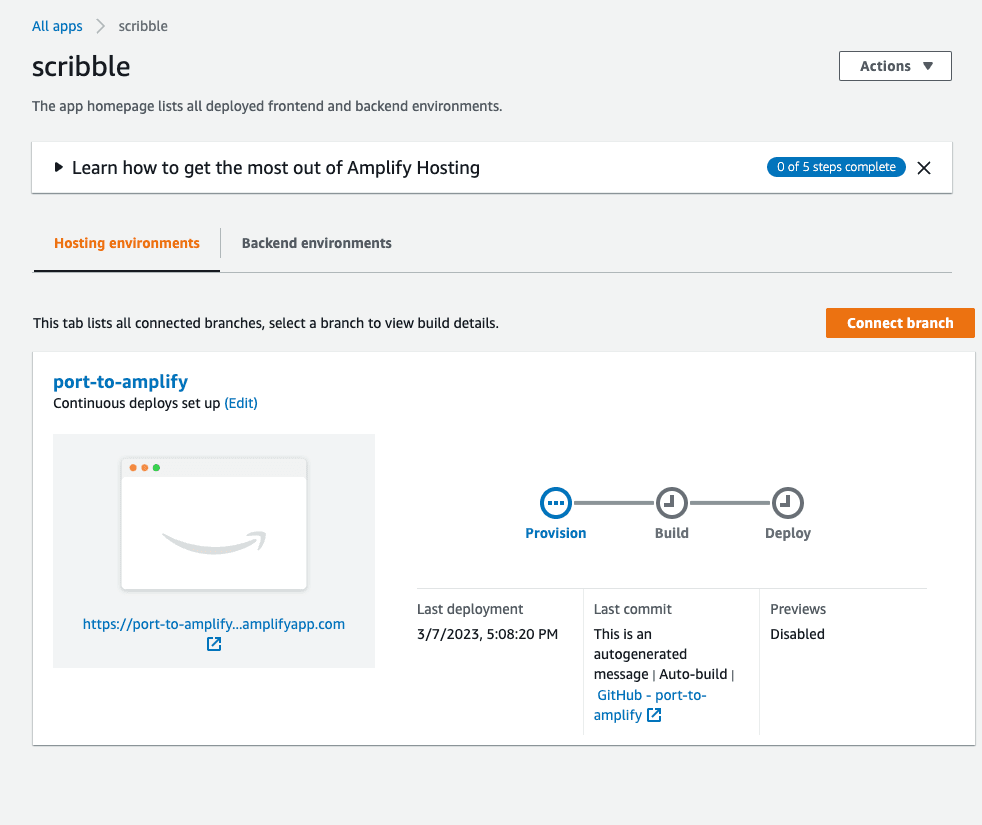
Setup develop and main branches for deployment:
At minimum it’s a good idea to have a development instance on Amplify where feature branches can be integrated and tested (like a dev or staging environment), and a main branch either for demoing or QA activities or even as the Production instance. To achieve this we can create two git branches that will be ‘long-lived’ - develop and main (or whatever names you prefer).
Once those branches are created and pushed to the remote, you can go to the Amplify console for your app > App Settings > General > Branches and connect those two branches.
(Optional) Setup Automated Tests:
Setup your amplify.yml file to automatically run tests during the build. For this Next.js app, the only tests that we get out of the box is the linter. So modify your amplify.yml file to look like:
version: 1
frontend:
  phases:
    preBuild:
      commands:
        - yarn install --immutable --immutable-cache
    build:
      commands:
        - yarn build
  artifacts:
    baseDirectory: .next
    files:
      - '**/*'
  cache:
    paths:
      - node_modules/**/*
test:
  phases:
    preTest:
      commands:
        - yarn install --immutable --immutable-cache
    test:
      commands:
        - yarn lint
  artifacts:
    baseDirectory: .next
    files:
      - '**/*'
  cache:
    paths:
      - node_modules/**/*
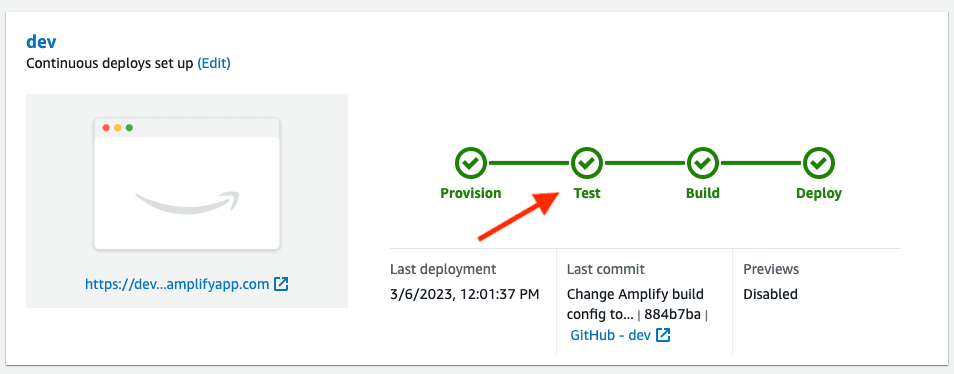
Now, your builds will run a Tests stage as part of the build (see example screenshot). If the linter gets an error the build will fail and not deploy.
(Optional) Environment Variables:
To add environment variables to Amplify during the builds and when running on the hosting instances, you need to do 2 things. First, go to your App in the Amplify console , Environment Variables, and add them. Secondly, update your amplify.yml file to create an .env file on the fly during builds, an example:
version: 1
frontend:
  phases:
    preBuild:
      commands:
        - yarn install --immutable --immutable-cache
    build:
      commands:
        - yarn run build
        - env | grep -e NEXT_PUBLIC_MY_ENV_KEY >> .env
        - env | grep -e NEXT_PUBLIC_MY_OTHER_ENV_KEY >> .env
  artifacts:
    baseDirectory: .next
    files:
      - '**/*'
  cache:
    paths:
      - node_modules/**/*